
com.dare.zappl.preferences configuration profile — there is no separate configuration required.
- Apps available in the Updates tab are controlled by the Allowed Updates or Excluded Updates keys
- Apps available in the Installs tab are controlled by the Allowed Installs or Excluded Installs keys
Updates Tab
By default, AppBar will display all apps supported by Zappl in the Updates tab. You can use the Allowed Updates or Excluded Updates keys to limit which apps are shown.Allowed Updates — Specify only the apps you want to allow
Allowed Updates — Specify only the apps you want to allow
Use this option if you want to show only a specific set of apps and restrict everything else. Specify the apps you wish to allow using their unique identifiers from the Zappl App Catalog.Any app not included in this array will not appear in the Updates tab.
If you specify an app in the Allowed Updates array that is also present in Excluded Updates, the exclusion will take precedence and the app will not be shown.
Excluded Updates — Allow everything except specific apps
Excluded Updates — Allow everything except specific apps
Use this option if you want to make all apps available but hide a small number. Specify the apps you wish to exclude using their unique identifiers from the Zappl App Catalog.All other apps will remain visible in the Updates tab.
If you specify an app in the Excluded Updates array that is also present in Allowed Updates, the exclusion will take precedence and the app will not be shown.
Installs Tab
By default, the Installs tab is disabled. Users will see the message below when they navigate to it until you enable it by checking the Installs Tab Enabled checkbox in the AppBar preferences.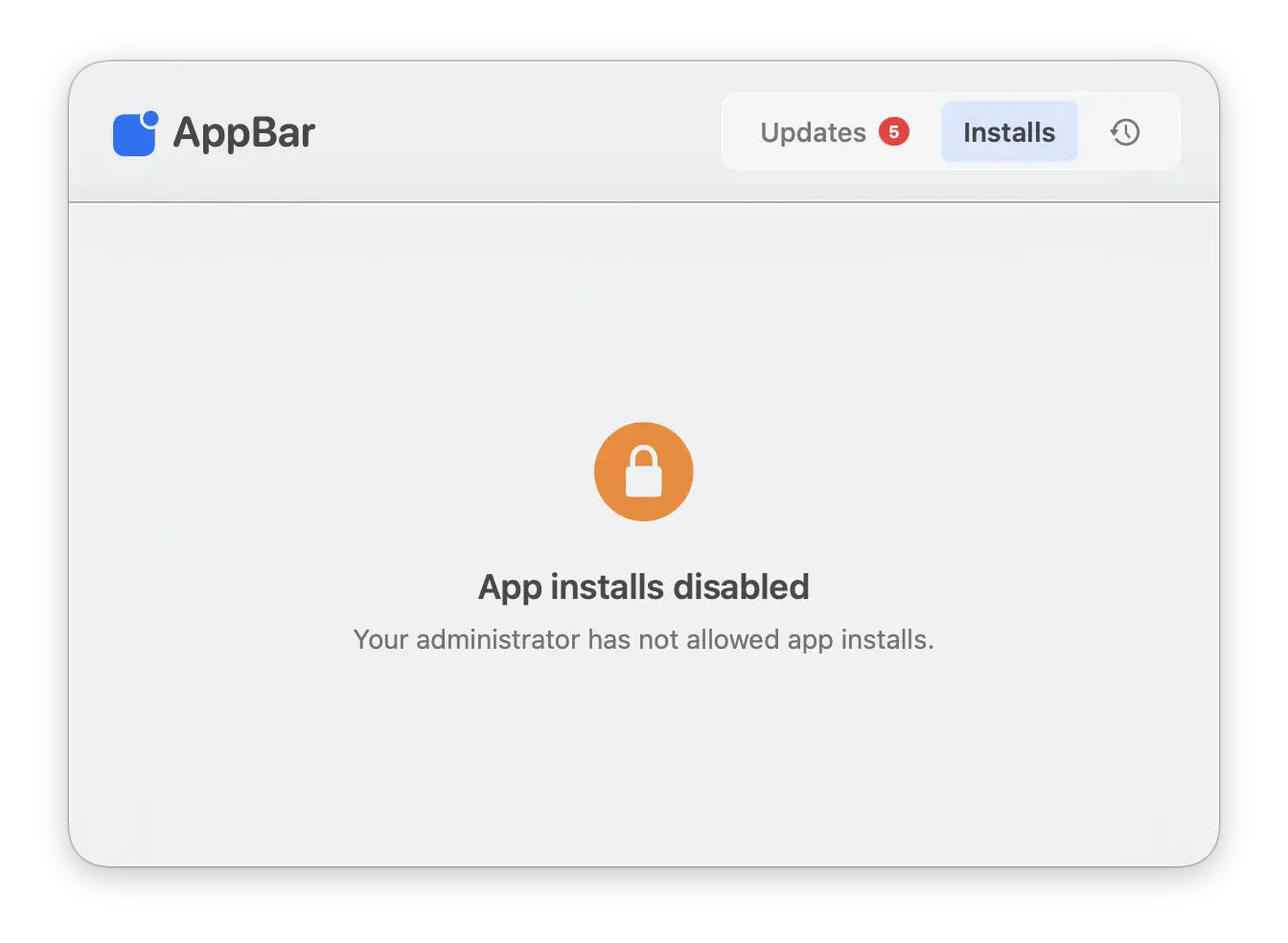
com.dare.zappl.preferences profile includes only CodeRunner, Microsoft Edge, and Microsoft Teams.
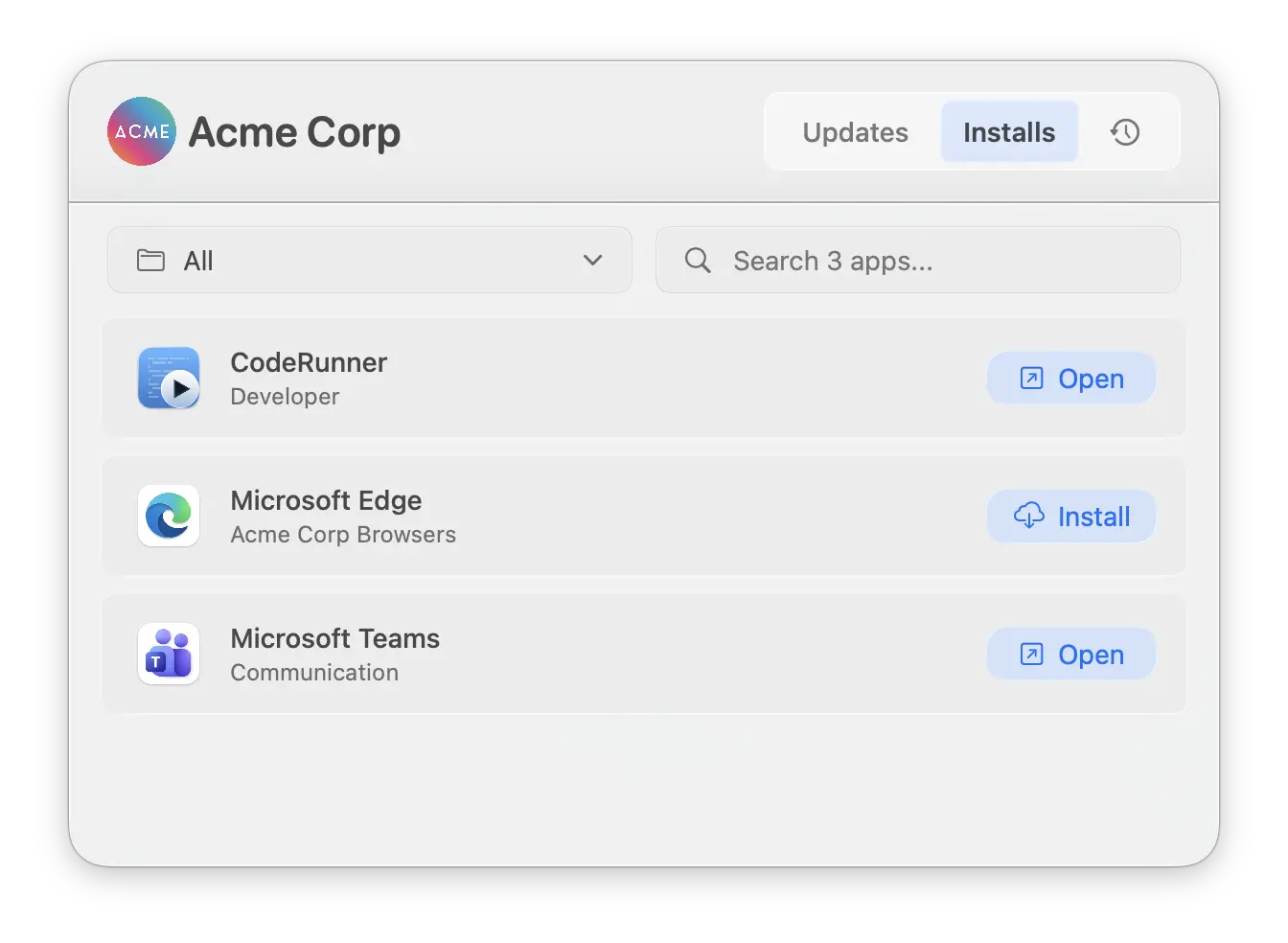
Allowed Installs — Specify only the apps you want to allow
Allowed Installs — Specify only the apps you want to allow
Use this option if you want to show only a specific set of apps and restrict everything else. Specify the apps you wish to allow using their unique identifiers from the Zappl App Catalog.Any app not included in this array will not appear in the Installs tab.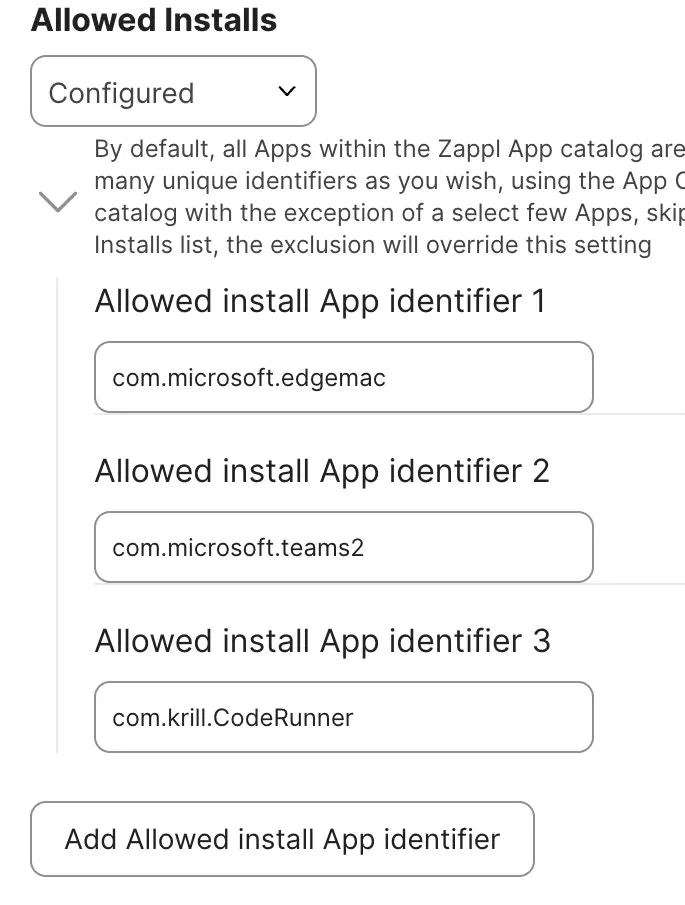
If you specify an app in the Allowed Installs array that is also present in Excluded Installs, the exclusion will take precedence and the app will not be shown.
Excluded Installs — Allow everything except specific apps
Excluded Installs — Allow everything except specific apps
Use this option if you want to make the full catalog available but hide a small number of apps. Specify the apps you wish to exclude using their unique identifiers from the Zappl App Catalog.All other apps in the catalog will remain visible in the Installs tab.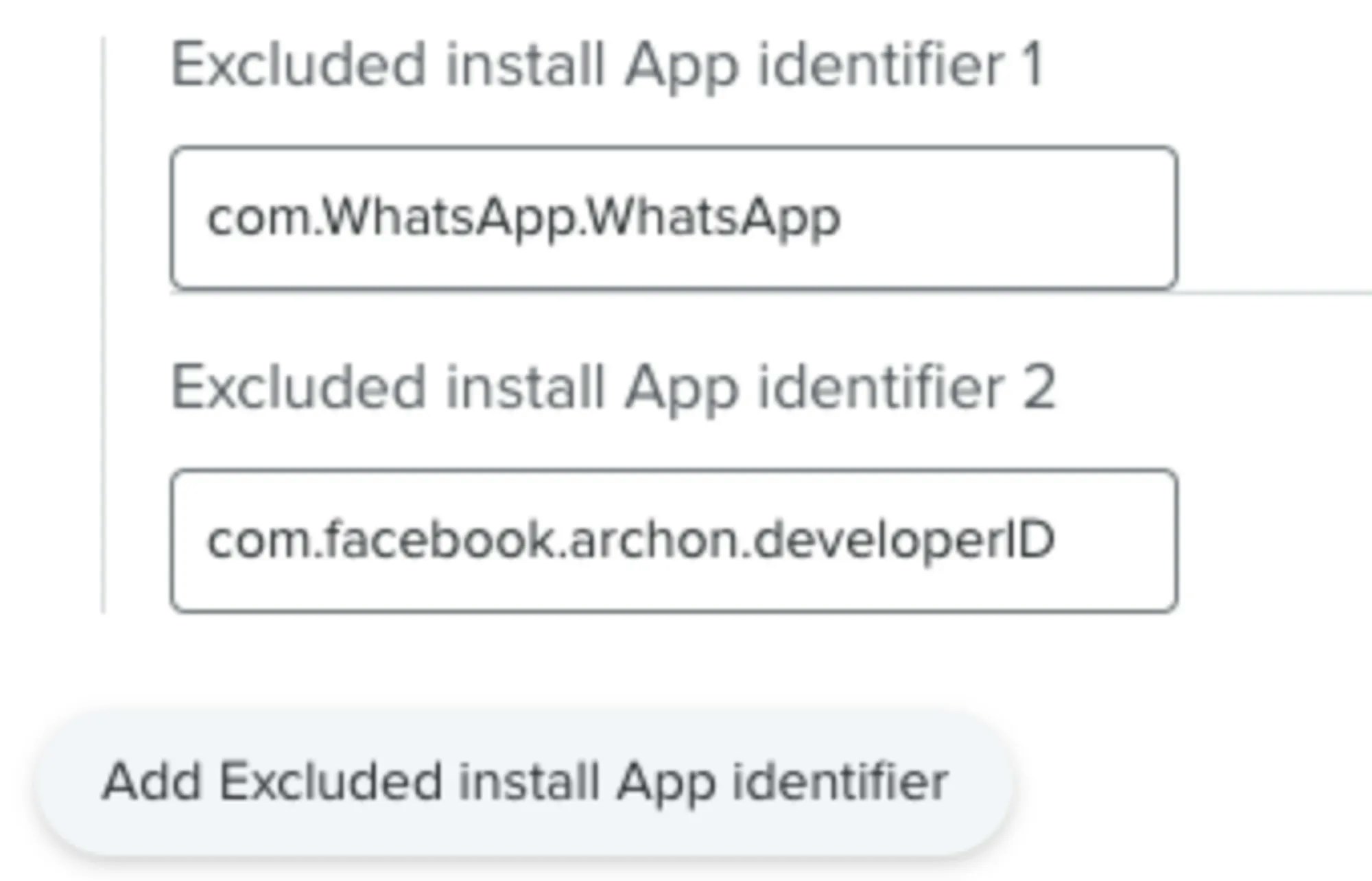
If you specify an app in the Excluded Installs array that is also present in Allowed Installs, the exclusion will take precedence and the app will not be shown.
Configuring the Profile
All four options are configured within thecom.dare.zappl.preferences profile. If you haven’t set this up yet, download the appropriate resource for your MDM and configure whichever keys apply to your needs.
Jamf Pro — JSON Schema
Download the JSON Schema to configure the Zappl preferences profile in Jamf Pro.
Other MDMs — Sample Plist
Download a sample plist to configure the Zappl preferences profile in your MDM of choice.